Best Free Video Editing Software for Beginners 2026
DaVinci Resolve is the most capable free choice for ambitious projects, while beginners who want a gentler start can look to Clipchamp or iMovie. Free video editing options range from guided templates to advanced timelines, so your device, project, and patience for learning all matter. A timeline is the editing workspace where you arrange video and audio clips in sequence.
CapCut is another good fit for vertical video and quick social media content. The right software can save time, but a long feature list does not guarantee an easy first edit. Some editors help you finish quickly; others reward you with more control as your skills grow.
This roundup compares the main options by workflow, device, and project type. You will also find practical checks for export limits and performance, so you can choose a tool that suits the video you want to make.
A good first editor is the one that lets you finish and export the kind of video you actually want to make.
Key Takeaways
- DaVinci Resolve Free offers the most room for advanced editing.
- Clipchamp and iMovie make a simpler first edit more approachable.
- CapCut suits quick vertical videos for social platforms.
- Kdenlive, Shotcut, and OpenShot offer open-source desktop workflows.
- Check export settings and playback with your own footage before committing.
Best Free Video Editing Software for Beginners
For a first video, an editor with a clear timeline and straightforward export is usually a better fit than the one with the longest feature list. Easy means you can finish a first edit without learning specialist effects.
Pick the simplest tool that can complete your next project. Clipchamp and iMovie offer gentler entry points than DaVinci Resolve. CapCut favors quick social edits, while Kdenlive gives you more room to learn traditional editing tools.
Choose the simplest editor that supports your next video, not the one with the most features.
Use this checklist before you settle on a video editor:
- Interface: Can you find import, trim, and export without hunting through menus?
- Timeline: Does it support the number and type of clips your project needs?
- Computer: Can your device play the footage smoothly while you edit?
- Free plan: Does it include the tools and export settings you need?
A video editing software interface can look simple but still hide limits that matter later. For example, a timeline may work well for one camera clip, yet feel cramped with music, titles, and several video layers.
Hardware also changes the experience. A capable desktop can handle more complex editing tools, while a modest laptop may feel better with a browser editor or a lighter desktop app.
When you are looking for the best free video editing software for beginners, match the interface to the job. A short school video has different needs from a long YouTube project with voice-over and color work.
Pick the simplest tool that can complete your next project, not the one with the most features.
How Do the Free Editors Compare?
The biggest differences are how much control each editor gives you and what its free plan lets you export. Start with the platform and output needs that could rule an app out.
Check the export column before you spend time learning an interface. The free video editors below cover advanced desktop work, quick social clips, and basic projects.
| Editor | Platforms | Best fit | Free export or workflow distinction |
|---|---|---|---|
| DaVinci Resolve | Windows, Mac, Linux | Advanced editing and color | Up to Ultra HD 3840 x 2160 at 60 fps |
| CapCut | Windows, Mac, iOS, Android, web | Fast social video | Multiple devices and web workflow |
| Clipchamp | Web, Windows | Simple browser edits | Free exports at 480p |
| iMovie | Mac, iOS | Simple Apple projects | Available only on Apple platforms |
| Kdenlive | Windows, Mac, Linux | Traditional desktop editing | Open-source, multi-track workflow |
The table shows why one editor cannot suit every project. A small 480p social clip and a detailed 4K documentary need different tools and hardware.
Other options available include Shotcut and OpenShot, both desktop editors with their own balance of ease and control. Adobe Express serves users who prefer templates over a detailed timeline.
Use the table to narrow the field, then judge the finalists by how they handle your own footage.
DaVinci Resolve: Free Power for Advanced Projects
DaVinci Resolve Free is the strongest pick when you want one application for editing, color, effects, and audio. It brings several specialist work areas into a single interface.
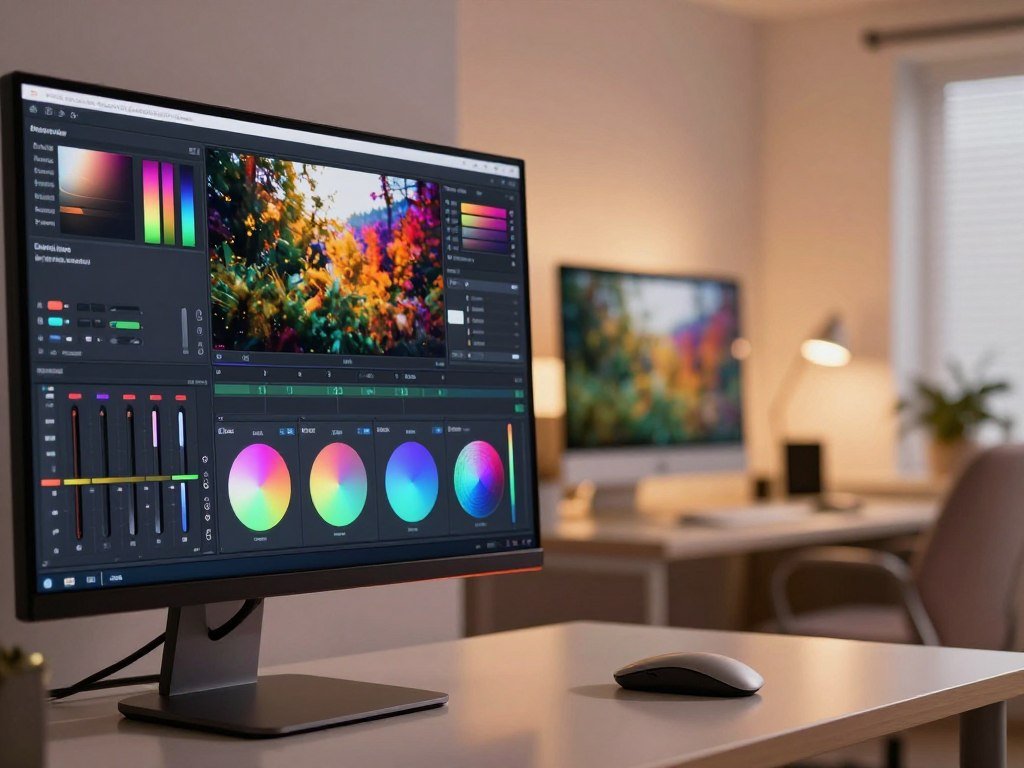
The free version can handle serious editing, but its mastered output stops at Ultra HD 3840 x 2160 and 60 fps. It can work with media at unlimited resolution, which is not the same as exporting a finished video at unlimited resolution.
What the Free Version Can Do
Version 21 includes Media, Cut, Edit, Fusion, Color, Fairlight, Deliver, and Photo pages. Cut gives you a fast editing workflow, while Edit offers a more detailed timeline for arranging clips and tracks.
Color provides tools for color grading, or adjusting the look and balance of the image. Fusion handles visual effects and compositing, where you combine images and layers. Fairlight is the audio workspace, with real-time effects, EQ, and dynamics processing.
Fairlight supports up to 2,000 audio tracks. Version 21 also adds a Photo page and more than 100 motion graphic effects, expanding the tools available inside the same application.
New users can focus on four page areas before exploring the rest:
- Cut: Make quick edits and arrange a simple sequence.
- Edit: Build a more detailed timeline with video and audio.
- Color: Adjust exposure, contrast, and color balance.
- Fairlight: Set levels and shape dialogue or music.
Deliver controls the final export. Resolve also supports virtually all 8-bit video formats up to Ultra HD and 60 fps, though codec support depends on the operating system and format.
Where the Free Version Reaches Its Limits
The output ceiling matters if you need a larger frame size or a frame rate above 60 fps. Resolve can process high-resolution media, but that ability does not raise its free export limit.
Some tools require DaVinci Resolve Studio, including named Neural Engine tools and video noise reduction. Studio-only Resolve FX may appear in the free version for preview, but those previews carry a Studio watermark.
That difference is important: an effect appearing in the interface does not mean you can export it cleanly from the free version. The software also has high system demands and a learning curve, which can slow a simple first edit.
PCMag rates Resolve 4.0, or Excellent, while noting its system demands and learning curve. Try a short project before committing, since the interface and system demands can make simple edits feel like more work than they need to.
CapCut: Fast Editing for Social Media
CapCut is a strong fit when you want to turn clips into a captioned vertical video without learning a complex editing workflow. Its quick tools suit creators who need a fast path from phone footage to a social post.
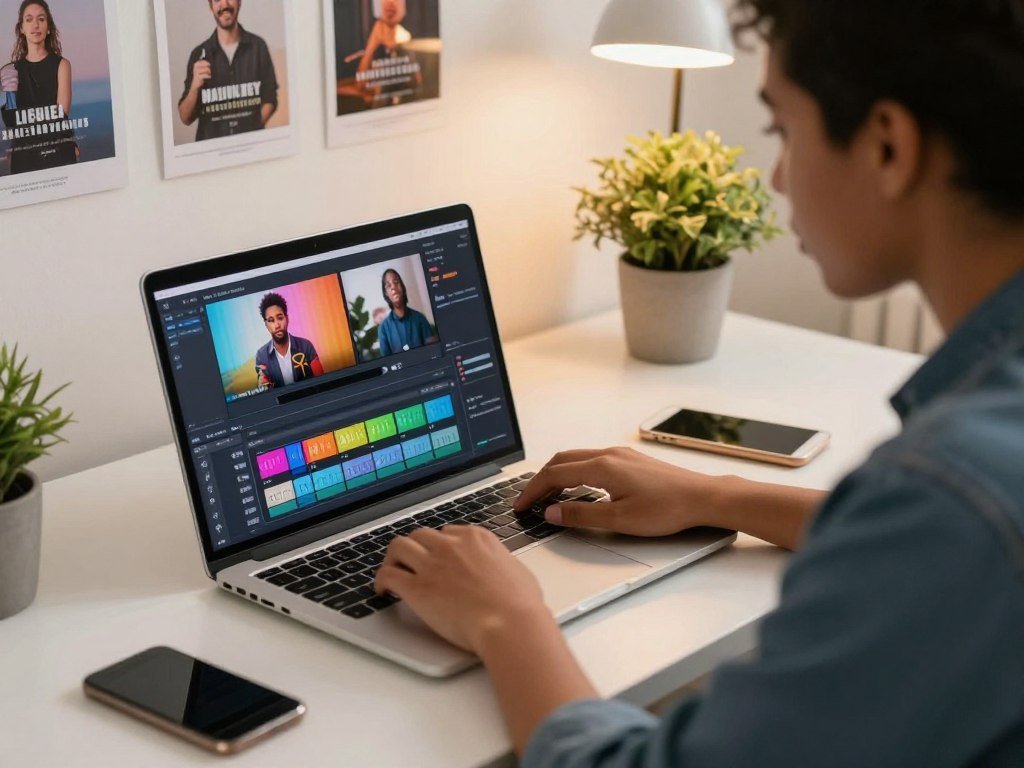
CapCut’s free tier can cover basic short-form editing, but some effects and tools carry a Pro label. CapCut works on Windows, Mac, iOS, Android, and the web.
What Makes CapCut Quick to Learn
Drag-and-drop editing makes it easy to arrange clips, add titles, and bring in audio. Captions can help viewers follow speech, while text-based editing lets you work from a transcript rather than cutting every pause by hand.
The app also includes chroma key, which removes a chosen background color, and keyframes, which set how a visual element changes over time. Motion tracking can attach an effect or label to a moving subject.
CapCut’s ready-made formats and effects are geared toward TikTok, Instagram Reels, and YouTube Shorts. These platforms favor vertical video, quick cuts, readable text, and short runtimes.
A first-time user completed a polished 90-second edit in 34 minutes in a 2026 beginner-editor comparison. English auto-captions scored 98.2% accuracy in that comparison’s tests, though you should still review names and technical terms.
When Its Free Tier Is Enough
Free tools can be enough for a basic cut, titles, captions, and common effects. Features marked Pro may need a paid account, so an effect visible in the app might not be included in your current tier.
The 2026 comparison lists CapCut Pro at $7.99 per month. It also lists exports up to 8K at 60 fps, but that maximum does not mean every project or account has every export option.
CapCut can save time when you are making regular social content, but its feature labels matter. Before building a large project, check that the effects and export options you plan to use are available in your account.
Clipchamp: A Browser Editor for Simple Projects
Clipchamp makes sense when you want a familiar, browser-based timeline for a short project without installing a full desktop suite. Its simple layout helps with basic edits, titles, and layered clips.
Clipchamp Free exports watermark-free video at 480p. A premium account offers watermark-free exports at 720p and 1080p.
You can work in Chrome or Edge, or use the Windows app. The drag-and-drop timeline supports multiple tracks, so you can place video, music, and titles in separate layers.
Templates and free assets can speed up a simple announcement or school project. They also give you a starting point when an empty timeline feels like too much work.
Clipchamp runs in a browser, so your internet connection and browser performance affect the workflow. Large files can take time to load, and several open tabs may compete for memory.
The free export ceiling may be fine for a small preview or a low-resolution share. It can be a poor fit when your final video needs sharper detail for a large screen.
Export a small sample before editing a whole project, especially if the free plan’s 480p ceiling will not suit the final destination.
iMovie: The Easiest Pick for Apple Users
For a beginner already using Apple devices, iMovie is a natural place to assemble a first video. Its familiar workflow keeps importing, trimming, and sharing close at hand.
iMovie is free on Mac and iOS, but it supports only two video tracks and a 16:9 frame. That setup works for many simple landscape videos, though it limits layered projects and vertical posts.
You can import clips from Apple devices and arrange them in a straightforward timeline. Built-in chroma key helps replace a green screen, while stabilization can reduce visible camera shake.
Those tools make iMovie useful for home videos, class projects, and simple vlogs. It is not a full professional editing suite, and the limited track count can become a problem when you add layers.
PCMag describes iMovie as limited to Apple platforms and two video tracks. Its iMovie and Final Cut Pro comparison also covers features such as beginner-focused Storyboards and Trailers.
iMovie’s simple workflow can help you finish a first edit without a long setup. The fixed aspect ratio is the bigger concern for creators who post to several platforms.
Choose another editor if your project depends on vertical or square framing or a more layered timeline.
Kdenlive: Open-Source Editing Across Platforms
Kdenlive is a practical choice if you want a capable desktop timeline without tying your workflow to one operating system. Its open-source design makes it especially appealing to Linux users and Windows users who want an alternative.
Kdenlive runs on Windows, Mac, and Linux, with a traditional multi-track workflow. You can place clips on several tracks, apply effects, and adjust color grading in a desktop editor.
Chroma key tools can remove a colored background, while export controls let you choose among formats such as H.264, HEVC, and AV1. That gives you options for different devices and sharing needs.
The interface offers more control than a template-based editor, but that control takes time to learn. Beginners may need to explore menus before finding a preferred way to handle effects or exports.
GPU rendering remains experimental. A graphics card may not speed up exports in the way you expect, so the feature should not be the main reason you choose the app.
Kdenlive can suit a student editing on Linux or a Windows user who prefers open-source software. It also offers room to grow beyond a basic one-track project.
If GPU rendering matters to your workflow, check performance on your own machine before starting a long export.
Shotcut: A Lightweight Choice for Older PCs
On an older computer, a lighter editor such as Shotcut is worth trying before installing a resource-heavy suite. Its modest approach can make desktop video editing more comfortable on limited hardware.
Shotcut is open source and supports 4K editing, but lighter software does not guarantee smooth playback. Codec, frame size, and effects can all affect how footage runs.
The editor offers a traditional timeline, broad format support, and chroma key tools. You can arrange clips, make cuts, and build a basic sequence without relying on a browser.
Some footage may still stutter, especially when a project uses demanding effects or a codec your computer handles poorly. A blank project cannot show you how well the editor will behave with your real media.
Choose a representative clip that matches your usual work. A phone video, camera file, or screen recording can reveal playback issues before you commit to a full edit.
Keep the first timeline simple and test the heaviest footage you expect to edit.
OpenShot: A Simple First Desktop Editor
OpenShot is approachable if you want to learn the basics of arranging clips, adding titles, and exporting a finished video. Its clean interface gives beginners a clear place to start.
OpenShot supports Windows, Mac, and Linux, with drag-and-drop editing and animated titles. Its feature list includes unlimited layers and 4K export.
You can arrange clips, add basic transitions, and use keyframe animation to change an effect over time. Layers let you place titles or other elements above the main footage.
That range can cover personal videos, school assignments, and classroom projects. The interface stays approachable, but rendering can be slower, and the app has fewer advanced effects than a high-end suite.
Those trade-offs matter if you need detailed color work or a complex edit with many effects. OpenShot is better suited to learning core editing skills than demanding professional work.
A modest first project lets you learn the timeline without waiting on a large render. Keep a few clips, one title, and a small number of transitions.
Keep a first project modest so rendering speed does not become the main lesson.
Adobe Express: Quick Template-Based Videos
Adobe Express is a sensible option when you want to build a short video around a template rather than shape every detail on a complex timeline. Its design-led workflow suits quick promotional or social pieces.
Adobe Express offers free 4K video downloads without a watermark. That detail applies to those downloads, not automatically to every feature or plan.
Templates and stock assets help you assemble a short piece without making every design choice from scratch. You can add your own images, text, and clips to a ready-made layout.
This workflow is useful for a quick event notice, product teaser, or social post. It asks less of you than a full timeline editor, but gives you less control over each part of a long project.
Adobe Express is not the pick for complex, long-form timelines or deep post-production work. It favors speed and a designed look over precise editing control.
Choose it for a quick, designed piece, not a project that needs deep post-production control.
Which Editor Fits Your Device and Video Type?
For the broadest editing control on a capable PC, start with DaVinci Resolve; for simpler projects, match the app to your device and workflow. Your computer and the kind of video you make narrow the choice quickly.
Windows users can choose among Resolve, Clipchamp, Shotcut, and Kdenlive. The right fit depends on how much control you need and how smoothly your machine handles the footage.
Match the Editor to Your Computer
| Device or constraint | Recommended editor | Why it fits |
|---|---|---|
| Windows desktop | DaVinci Resolve | Broad control for complex editing |
| Apple-only workflow | iMovie | Free on Mac and iOS |
| Linux computer | Kdenlive | Desktop timeline on Linux |
| Older or lower-end PC | Shotcut | Lightweight option to test |
Match the Editor to Your Project
DaVinci Resolve suits complex long-form projects and color work, especially when the computer can manage a detailed timeline. Fairlight supports up to 2,000 audio tracks, though most beginner projects need far fewer.
CapCut fits quick short-form social videos, while Clipchamp suits a fast browser edit. iMovie is a simple choice for Apple projects that use its supported frame shape and limited track count.
YouTube creators who need more control should start with Resolve. A simple vlog may be easier to finish in iMovie or Clipchamp, especially when it needs only a few cuts and titles.
If you are planning a channel, YouTube keyword research tools can help you explore topics before recording. Editing choice comes after you know the project’s length, footage, and publishing needs.
Let the project’s most demanding requirement, not its platform label, make the final call.
What Do Free Plans Really Limit?
A free download does not always mean every effect, export setting, or workflow is free to use. Check the limits that could affect your finished video before building a large project.
DaVinci Resolve Free has no time limit or subscription, but some features require Studio. A free version can be ongoing while still keeping certain tools behind a paid license.
| Feature or tier | What the free version allows | Paid or licensed condition |
|---|---|---|
| Resolve Free duration | No time limit or subscription | Studio is a one-time desktop purchase |
| Python scripting | Not included in version 21.1 Free | Moved to Studio in version 21.1 |
| Studio-only Resolve FX | Some previews show a watermark | Studio license removes the preview limit |
DaVinci Resolve Studio is listed at $295 as a one-time desktop purchase in 2026. That is different from a recurring subscription, so compare the payment type as well as the price.
In the free version, a Studio watermark can appear when you preview Studio-only Resolve FX. Remove the effect or render on a licensed Studio installation to remove that limit.
Before choosing any editor, check these four points:
- Export ceiling: Does the final size and frame rate meet your needs?
- Watermark rules: Will a logo appear on the finished file?
- Paid-only effects: Are your planned tools included?
- Fees: Is payment recurring or a one-time license?
These checks matter even when an app has a useful free tier. Test the exact features and export settings you need before editing a project you cannot easily redo.
Is CapCut Available and Safe to Use in the US?
As of October 19, 2026, CapCut was listed in both major US mobile app stores, though installation still depended on the user’s account and device. Availability does not by itself answer privacy questions.
CapCut’s US availability has changed over time, and its privacy policy describes broad content and device data collection. The policy and legal rules address different questions.
US Availability and the Legal Timeline
- January 18, 2025: Major US mobile app stores began removing CapCut as service was interrupted.
- February 13, 2025: Apple and Google restored CapCut to their app stores.
- October 19, 2026: CapCut appeared in both major US stores, with installation depending on account and device.
The Protecting Americans from Foreign Adversary Controlled Applications Act restricts covered distribution, maintenance, updating, and hosting unless qualified divestiture occurs. Section 2(f)(2) excludes individual users from Attorney General enforcement under that section.
Executive Order 14352, dated September 25, 2025, identified CapCut applications within a qualified-divestiture framework. This describes a legal framework, not a personal guarantee about data safety.
In January 2026, TikTok USDS Joint Venture LLC said its stated US data, app, and algorithm safeguards cover CapCut. The joint venture announced ByteDance holds 19.9%, while Oracle, Silver Lake, and MGX each hold 15%.
The US Apple App Store identifies ByteDance Pte. Ltd. as CapCut’s developer and seller. The policy states that CapCut services are operated by TikTok USDS Joint Venture LLC.
What CapCut’s Privacy Policy Says
CapCut’s US privacy policy was last updated April 15, 2026. It says the app may collect submitted photos, images, audio recordings, videos, metadata, AI prompts, and AI-generated responses.
The policy says content may be collected through pre-uploading when created, imported, or uploaded, even if you do not save or publish it. Listed device and network details include IP addresses, device identifiers, network data, device model, operating system, and app or file names.
It also lists screen resolution, system language and region, and battery information. Approximate location is based on SIM-card region and IP address.
The policy says content may be analyzed for objects, scenery, faces, body parts, and spoken words. It describes uses such as effects, recommendations, moderation, and service improvement.
It says face or body information is not used to identify users and is deleted after applying an effect that uses it. The policy also says user information may help train, test, and improve machine-learning models and algorithms.
Before uploading sensitive footage, review the current US privacy policy and decide whether its content collection practices fit your project.
DaVinci Resolve vs CapCut vs Shotcut
Choose Resolve for deep control, CapCut for quick social edits, and Shotcut when a lighter workflow matters most. The best fit depends on whether control, speed, or computer performance matters most to you.
Resolve favors advanced editing, CapCut favors quick social publishing, and Shotcut suits users who prioritize a lighter desktop editor. Your project and hardware determine which trade-off feels acceptable.
When Resolve Is the Better Fit
DaVinci Resolve is the stronger choice for complex timelines, color grading, and audio work. It lets you shape a project in more detail, provided your computer can handle the workload.
That added control helps when a video has many clips, detailed color adjustments, or layered sound. It can feel like too much for a short edit with only a few cuts.
When CapCut or Shotcut Wins
CapCut wins when you want to publish a quick vertical social clip with minimal setup. Shotcut is a practical pick when a lighter desktop workflow matters more than a large feature set.
| Project priority | Best fit | Trade-off to consider |
|---|---|---|
| Advanced long-form control | DaVinci Resolve | Steeper learning and system demands |
| Quick short-form publishing | CapCut | Some features carry paid labels |
| Older or lower-end PC | Shotcut | Playback still depends on footage |
A long edit with several scenes may benefit from Resolve’s depth, while a daily social post may favor CapCut’s quick workflow. Shotcut offers a middle path when you want a desktop timeline on a modest machine.
The right winner is the one that completes your actual project smoothly, not the one with the longest feature list.
What Should You Test Before Committing?
A small test project can reveal workflow problems before they cost you an afternoon. Use real footage from your usual devices, rather than judging an editor with sample files alone.
A 30-60-second sample export is a practical way to check the whole workflow. Include three representative clips, such as a phone video, camera clip, and screen recording.
- Import the clips you expect to use most often.
- Trim and split them on the timeline.
- Add one title or effect to test the controls.
- Export a short sample and play the finished file.
Playback, audio sync, export time, and the final file matter more than a feature checklist.
Watch for stutters during playback and listen for audio that drifts out of sync. A smooth timeline does not guarantee a clean export, so check the saved file itself.
Export time also affects your workflow if you plan to make videos often. A small test shows whether the wait feels reasonable on your device.
Keep the sample files on the same drive and device you plan to use for the finished project.
How to Make a Clean First Export
A clean first export starts with a simple edit and the right frame shape for its destination. Match the frame to where people will watch the video before arranging clips.
Use 16:9 for common landscape viewing and 9:16 for vertical, phone-first social posts. Picking the frame early helps you place titles and subjects where viewers can see them.
- Organize source clips into a folder and remove files you will not use.
- Arrange and trim the clips so the main action is easy to follow.
- Add readable titles and balance dialogue, music, and other audio.
- Export the video, then watch the final file from beginning to end.
Keep titles large enough to read on a phone, and avoid placing important words at the frame edge. Set music below speech so viewers can follow the main message.
Choose the project frame based on its destination, not just the shape of your first clip. A landscape video can suit a computer screen, while a vertical frame fits phone-first posts.
Watch the exported file once before sharing, since a finished-looking timeline can still hide a missed cut or muted track.
Conclusion
The best fit is the editor that supports your project without making the learning curve or export limits a daily obstacle. DaVinci Resolve remains the most capable overall choice for users who want advanced control.
Clipchamp or iMovie can make a simpler start, CapCut suits short-form social work, and Shotcut may fit users who prioritize a lighter editor. Your first step can be small: test the same short clip in two finalists.
Choose two finalists, test each with the same short clip, and keep the one that makes you more likely to finish your next video.
FAQ
Is DaVinci Resolve really free?
Yes, DaVinci Resolve Free has no time limit or subscription. It includes a wide set of editing, color, effects, and audio tools. Some features, including Neural Engine tools and video noise reduction, require DaVinci Resolve Studio. Studio-only effects may show a watermark when previewed in the free version, so check the tools you plan to use.
What is the best free video editing app?
DaVinci Resolve is the strongest overall choice for advanced editing, color work, and detailed audio control. Clipchamp or iMovie can be easier starting points if you want a simpler first edit. The right pick depends on your device and project. A quick social clip needs a different workflow from a long video with many tracks.
Which video editor is 100% free?
Kdenlive, Shotcut, and OpenShot are open-source or free options for desktop editing. That does not mean every editor includes every advanced feature or workflow you may want. Open-source tools can provide broad editing controls, while paid editions of other apps may unlock specific effects. Check export settings and the tools needed for your project.
Is CapCut still free?
Yes, CapCut has a free tier, while some features are reserved for paid use. A 2026 comparison lists its Pro plan at $7.99 per month. The free tools may suit basic edits, captions, and social clips, but Pro labels can apply to effects or other features. Check your account’s available tools before building a large project.
Why is CapCut being banned?
The Protecting Americans from Foreign Adversary Controlled Applications Act restricts covered distribution, maintenance, updates, and hosting unless qualified divestiture occurs. Those restrictions focus on covered services and distributors. Section 2(f)(2) excludes individual users from Attorney General enforcement under that section. That exclusion does not mean every legal issue or app policy is settled.
Is CapCut still banned in the USA?
No, CapCut was restored to Apple and Google app stores on February 13, 2025, and appeared in US stores on October 19, 2026. Installation still depends on your account and device. App store listings can differ by region, device, or account settings, so availability on one phone does not guarantee the same result for another user.
What’s better than CapCut for editing?
DaVinci Resolve is better suited to complex edits, color grading, and detailed audio work. Shotcut is a practical alternative if you prioritize a lighter desktop editor. Neither is automatically better for every video. CapCut can still be a faster fit for short social clips, while the other tools offer different levels of control and learning effort.
Is CapCut safe, yes or no?
There is no blanket yes or no that fits every user or project. CapCut’s policy says it may collect submitted content, pre-upload content, and device or network details. It also describes analyzing content and using information to train models. The policy says face and body information is not used to identify users and is deleted after applying an effect that uses it.
About The Author