What Is Stable Diffusion AI? A Simple Beginner’s Guide

A short written description can now become a starting point for a visual idea, even if you have never used a design program. Stable Diffusion AI is an image-generation tool that can turn a text prompt into a visual result. Latent space is a compressed numerical representation of image information that a diffusion model can process without working directly on every pixel.
You do not need to be an artist to try it. A few clear words can guide the system, and you can refine the result as you learn what works. Your first image may miss details or show unexpected features, so treat the creative workflow as a series of choices rather than a one-click finish.
This beginner’s guide explains the basic process, ways to run the tool, and key rights questions to consider. You will also see how to choose a model and review an image before sharing it. Treat the first result as a draft to assess, not a finished asset to publish automatically.
Key Takeaways
- A text prompt can guide an AI system as it creates or edits an image.
- Stable Diffusion works with a compressed representation called latent space.
- Model choice affects access, hardware needs, and the kind of work you can do.
- Local tools and hosted services offer different levels of setup and control.
- Copyright and model license terms are separate questions.
- Review every generated image for errors, bias, and rights concerns before sharing.
What Is Stable Diffusion AI?
Stable Diffusion is a text-to-image model that turns a written description into a new image. It is part of generative AI, which creates new content from learned patterns rather than simply finding an existing picture. Public weights let users access the model itself, not just a finished service.
Stable Diffusion code and model weights were released publicly, but license terms can differ by version. That access gives developers and artists more ways to run or adapt the system. It does not mean every use is allowed under the same terms.
Public weights give users more ways to run and adapt Stable Diffusion than a tool available only through a closed cloud service.
A generated image is a visual result created or changed by an AI system. Stable Diffusion creates images from text descriptions, and some versions can also use an existing image as a guide. DALL-E 2 and Midjourney are examples of closed, cloud-based image-generation tools, with different access models.
The CompVis research group at LMU Munich helped shape the research behind the model. Björn Ommer led the group behind the paper “High-Resolution Image Synthesis with Latent Diffusion Models.” Its ideas let a model work in latent space instead of directly processing every pixel.
The research explains why latent diffusion can support image creation with less computation than pixel-based methods. You can read the CompVis Stable Diffusion documentation for details about the model’s design and its research roots.
Text-to-image generation and public model weights
A text-to-image model uses text as an instruction for image generation. You might ask for a watercolor fox beneath a streetlamp, or a clean product mockup on a white background. The system turns the description into visual features, then creates a new image from them.
Public model weights are the numerical values learned during training. They let people run a compatible model with local software, a rented computer, or another service. A public download does not guarantee that every version has the same license or support.
Björn Ommer and the latent-diffusion research
Björn Ommer’s CompVis group studied ways to make high-resolution image synthesis more efficient. Their latent-diffusion research helped establish the approach used by Stable Diffusion. The system’s public release on August 22, 2022, included original authors from Runway, CompVis, and Stability AI.
For a beginner, the key difference is access: a closed service gives you a provider’s tools, while public weights give you more choices about how to run a model.

What Can Stable Diffusion Create?
A prompt can produce a new image, while an existing image can guide a variation or a targeted edit. Different inputs lead to different tasks, from concept art to image repair. You can use text prompts alone or combine a prompt with an image or mask.
Choose the input that matches the change you want to make. Text-to-image starts from a description, while image-to-image uses a reference image. Inpainting replaces content inside a selected area, and outpainting extends an image beyond its original edges.
- Text prompt to new image: Create concept art for a moonlit garden or a product mockup for a new package.
- Reference image plus prompt to a variation: Keep a room’s layout while changing its color palette or lighting.
- Mask plus prompt to replace or extend selected content: Repair a missing section or add detail within a marked area.
A mask marks the part of an image the system should change. For example, you can select a plain wall and ask for a framed painting. Inpainting is useful when the rest of the image should stay mostly intact.
Outpainting makes the canvas larger and asks the model to create content beyond its original edges. It can extend a landscape into a wider banner or add space around a portrait. The result may need edits where the new and old areas meet.
For a quick look at prompt-led tools and reference-image workflows, see this guide to an online AI image generator. Those tools can offer a simpler starting point than setting up model files yourself.
Stable Diffusion can also support video generation through a separate model. Stable Video Diffusion XT generates 25 frames at 576×1024 resolution, unlike standard image generation, which returns a still image.
That video capability is not the same task as creating one image from a prompt. It uses a model built to generate frames, so the output format and workflow differ.
Choose text-to-image for a new scene, and use a reference image when preserving part of an existing composition matters.
How Does a Diffusion Model Turn Noise Into an Image?
A diffusion model learns how to undo noise, then uses that learned process to build an image from a noisy starting point. Noise removal happens in repeated denoising steps. The model uses information from the text prompt to guide the result.
Training teaches the model to reverse a gradual noising process; generation uses that skill to create something new. Noise means random visual data that does not yet form a clear scene. The model learns patterns by seeing how noise changes images during training.
What a diffusion model learns during training
During training, a system adds Gaussian noise to images in stages. Gaussian noise is a common kind of random variation. The model learns to predict how to reverse those additions and recover useful image structure.
Training and generation are related, but they are not the same event. Training builds the model’s ability to reverse noise. Generation applies that learned ability to produce a new result from a fresh starting pattern.
The model does not keep a hidden copy of each training image and retrieve it on command. Instead, it learns statistical patterns that can help it form new images. Those patterns can still reflect strengths and flaws in its training data.
What happens when it generates an image
A text encoder turns the prompt into information the model can use. A U-Net then predicts noise in the image representation, and the system removes some noise at each step. A decoder turns the finished latent result into a viewable image.
The generation process can be understood through four broad steps:
- Begin with random noise in the model’s image representation.
- Encode the text prompt into information that can guide the model.
- Remove noise over repeated denoising steps while following that guidance.
- Decode the finished latent result into an image you can view.
Each denoising step changes the noisy pattern. Early steps can shape broad forms, while later steps can refine details. The exact result depends on the model and settings, so the same prompt can produce different images.
The relationship between machine learning and AI helps explain the training idea: a model learns patterns from data, then uses them to make new results.
The prompt guides the direction of denoising, while the changing noise pattern helps produce different results.
Why Does Stable Diffusion Use Latent Space?
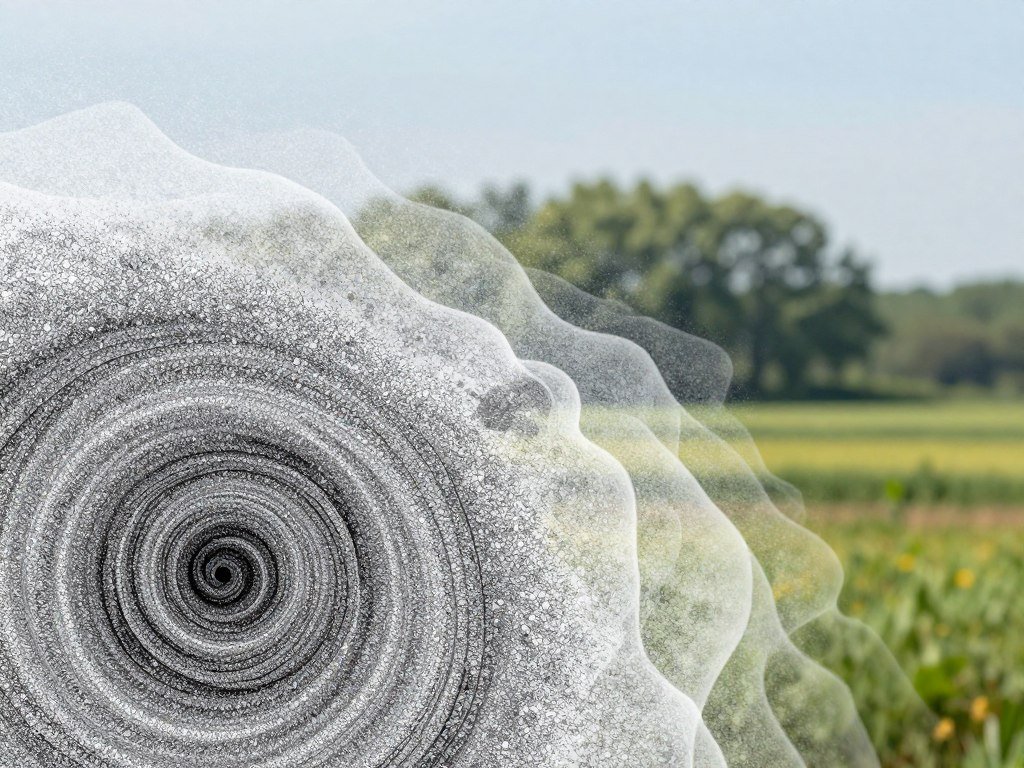
Processing a compact representation instead of every image pixel is the main efficiency advantage of latent diffusion. Latent space holds a smaller form of image information, so the denoising model has less data to process at each step. The image is decoded later for viewing.
Latent diffusion reduces computation compared with working directly in pixel space. A pretrained autoencoder helps compress and rebuild the image information. The method aims to retain useful visual quality and flexibility while using fewer resources.
An encoder maps image data into a smaller latent representation. A decoder takes that compressed form and reconstructs an image from it. The latent space is not simply a smaller picture; it is a numerical representation the model can process.
In classic Stable Diffusion examples, a 512×512 image maps to a 64×64 spatial latent representation. That is a sharp reduction in the width and height the denoising model handles. It still has channels and numerical values, so the full representation is more than a grid of 64 by 64 dots.
The encoder and decoder are parts of a pretrained autoencoder. The encoder compresses visual information before the diffusion process, and the decoder rebuilds the result afterward. This division lets the core model focus on a smaller representation.
For a clear introduction to compressed representations, IBM explains how latent space works in machine learning. The same broad idea appears in image systems that map complex data into a form models can process.
Working with fewer spatial values can cut the work needed during image generation. That helps explain why latent diffusion became useful for high-resolution image tasks. It does not mean a computer can handle every model or image size without limits.
Latent diffusion lowers computation, not the need for hardware. Larger models and higher output sizes can still demand substantial computing power. A compact representation makes the work more manageable, but it does not make the task weightless.
The compression reduces the work the denoising model must do, but it does not remove the need for suitable compute.

How Do the Text Encoder and U-Net Work Together?
The text encoder turns a prompt into a form the denoising network can use as guidance. Conditioning means adding information that steers image generation toward a requested subject or detail. The U-Net uses that information while refining the image representation.
Cross-attention lets prompt details influence image features during denoising. In some Stable Diffusion architectures, the text encoder uses CLIP to create prompt embeddings. Model versions can use different setups, so the parts do not work identically in every release.
The text encoder and cross-attention
The text encoder maps words into numerical embeddings, which represent parts of the prompt. The denoising network cannot use plain text in the same way a person reads it. It uses those embeddings as guidance for the image it is refining.
Cross-attention is a way for the network to compare image features with the encoded prompt. If the prompt names a red bicycle, the model can use that information while shaping the relevant image area. The prompt does not dictate every pixel, but it can influence which features become more likely.
Stable Diffusion uses cross-attention layers to support conditioning inputs such as text and bounding boxes. A bounding box can mark a region or object location. Text conditioning is the feature most beginners meet when they type a prompt.
CLIP is a text encoder used in accounts of some Stable Diffusion architectures. It maps words into a form that can connect language with visual concepts. Newer models may use different text encoders or combinations of encoders.
The U-Net’s encoder, middle block and decoder
A U-Net has an encoder, a middle block, and a decoder. Its encoder reduces the image representation and captures broad patterns. The middle block processes those patterns, and the decoder builds them back into a more detailed form.
Skip connections carry spatial information from earlier layers to later ones. They help the decoder use details that could be lost during compression inside the network. The design resembles a path down and back up, with links across the two sides.
The U-Net predicts noise in the latent representation during generation. It does not itself turn the final latent result into visible pixels. A VAE decoder handles that last conversion after the denoising work is complete.
These components work as a team: the text encoder supplies meaning, and the U-Net updates image features. The architecture makes text-conditioned image generation possible without treating the prompt as a direct pixel map.
Cross-attention is the link that lets encoded prompt details influence the image features being refined.
How Have Stable Diffusion Models Changed Over Time?
The major architectural shift is from the U-Net family used by earlier versions to the Diffusion Transformer in Stable Diffusion 3. Architecture changes affect how a model processes information, but they do not make every newer model the right choice for every task.
SDXL uses a U-Net, while Stable Diffusion 3 uses a Diffusion Transformer. Model size and release date offer useful context, not a simple score of image quality. Device limits and the work you want to do still matter.
Early U-Net models and the move to SDXL
Stable Diffusion 2.0 belongs to the earlier U-Net-based model family. SDXL continued with a U-Net design and was released June 25, 2023. It has 3.47 billion total parameters, a measure of the learned values inside a model.
SDXL expanded the model family while keeping the U-Net approach. That gives users a different option from earlier Stable Diffusion versions, though its size can require more memory. A model’s parameter count is useful for comparison, but it does not tell you every detail of speed or output quality.
Stable Diffusion 3’s transformer architecture
Stable Diffusion 3 was released June 12, 2024, with 7.69 billion total parameters. It uses a Diffusion Transformer rather than the U-Net architecture used by SDXL. Transformers process information through attention, a method for relating different parts of the input.
This change marks a major design shift, not a guarantee that every image will look better. A model’s fit depends on your hardware, task, and preferences. A user making quick drafts may value speed more than a larger model’s features.
| Model | Release date | Parameter count |
|---|---|---|
| SDXL | June 25, 2023 | 3.47 billion |
| Stable Diffusion 3 | June 12, 2024 | 7.69 billion |
| Stable Diffusion 3.5 Large | October 2024 | 8 billion |
Stable Diffusion 3.5 models and current availability
Stable Diffusion 3.5 Large was released in October 2024 and has 8 billion parameters. Stability AI’s Core Models page, last updated May 20, 2026, lists Stable Diffusion 3.5 Medium, Stable Diffusion 3.5 Large, and Stable Diffusion 3.5 Large Turbo.
Stable Diffusion 3.5 Large is described as a 1-megapixel model for professional use cases. Large Turbo is designed to create images in four steps. That speed feature can help when a faster result matters more than using many denoising steps.
Stable Diffusion 3.5 Large Turbo’s four-step generation makes speed a stated design feature, not a promise that every model uses four steps.
Which Stable Diffusion Model Fits Your Hardware?
Available VRAM is a practical first filter: Stable Diffusion 1.5 needs at least 4GB, while Stable Diffusion 3.5 Large needs more than 18GB at BF16. VRAM is memory on a graphics card, and it sets a key limit for local image generation.
Stable Diffusion 1.5 needs at least 4GB of VRAM, SDXL needs at least 8GB, and Stable Diffusion 3.5 Large needs over 18GB at BF16. BF16 is a numerical format used to run a model. The exact requirement depends on the model and how you run it.
Compare model memory requirements
| Model | VRAM requirement |
|---|---|
| Stable Diffusion 1.5 | At least 4GB |
| SDXL | At least 8GB |
| Stable Diffusion 3.5 Large | More than 18GB at BF16 |
A common recommendation for running Stable Diffusion models is 12–16GB of VRAM. That range can offer more room for different models, but it does not replace checking each model’s stated needs. Some settings or add-ons may increase memory use.
Match the model to your available device
System RAM and VRAM are different kinds of memory. System RAM serves the computer’s programs and data, while VRAM stores data the graphics card needs quickly. SDXL needs at least 16GB of system RAM as well as at least 8GB of VRAM.
Stable Diffusion 3.5 Medium is designed to run on consumer hardware. That description does not promise it will run on every consumer computer. The graphics card, available memory, and software setup still affect whether a model works well.
For users without enough VRAM, a hosted service or rented cloud GPU can run the model elsewhere. That avoids the need to fit the model on your own graphics card, though it changes the cost and access trade-offs.
These figures make model choice a practical decision, not a contest between old and new versions. A smaller model that runs smoothly may suit repeated drafts better than a larger model that strains your device.
Check the exact model and precision before downloading weights, since a requirement for one version does not transfer to another.
How Can You Run or Download Stable Diffusion?
A GitHub download is only one part of a local setup, which also needs compatible tooling and model weights. Three routes are common: run the model on your computer, rent cloud GPU capacity, or use a hosted service or API.
A repository download alone is not a complete setup. Local use involves Python-based tools and model weights, and the right combination depends on the model. A tutorial for one interface may not apply to every model release.
Run a model on your own computer
Local use gives you direct control over files and settings. Stable Diffusion code is available through GitHub, but code is only one part of the setup. You also need compatible software, downloaded model weights, and hardware that can run them.
Many beginners use an interface that manages model settings through a visual screen. The interface must support the specific model and related files. Check compatibility before following an installation guide, since file names and setup steps can change.
A local GPU runs the model on your computer. This route can suit repeated work or people who want to adjust the setup closely. It can also take time to install and maintain, and it uses your own hardware and electricity.
Use a hosted service or API
A rented cloud GPU runs the model on a computer you access over the internet. You can choose a machine with more memory than your own device, then pay for the time or use. It still requires some setup, though you do not need to buy that GPU.
A hosted image-generation service or API handles more of the technical work. You enter a prompt through a website or connect software to an API. The provider runs the model and may charge through a subscription, usage fee, or credits.
Compare the three routes before you start:
- Local setup: Install a compatible interface and model weights on your computer.
- Cloud GPU: Rent remote graphics-card capacity and run the model there.
- Hosted service or API: Send requests to a provider that manages the generation system.
A GitHub repository can help you understand the code and model, but downloading it does not install a ready-to-use app. Your chosen interface and weights must work together. Avoid assuming that one set of setup steps fits every release.
Choose local use when control and repeated access matter, and a hosted route when you want to avoid managing the GPU yourself.
How Much Does Stable Diffusion Cost?
Stable Diffusion can be run without paying a per-image API fee when you use local hardware, but that does not make every route free. Hosted services may charge subscriptions, usage fees, or credits for image generation.
Local use avoids a per-image API charge, while hardware, electricity, and setup still have costs. A hosted API bills each request under its own pricing rules. The model and provider determine the billing unit.
Local generation and hosted services
Publicly available weights can be run on your own computer without a per-image API fee. You still need hardware that can run the model, and that hardware uses electricity. Setup may also take time or require paid software or computer access.
A hosted service can be easier to start because the provider runs the model. Some services include image generation in a subscription, while others bill each request. A credit is the API billing unit used in the examples below.
Stability AI lists Stable Image Ultra at 8 credits per generation and Stable Image Core at 3 credits per generation. Those are separate products from the Stable Diffusion model API entries below. Do not treat all image tools as having one shared rate.
Stability AI API credit examples
Stability AI’s listed generation rates vary by model:
| API model | Credits per generation |
|---|---|
| Stable Diffusion 3.5 Large | 6.5 credits |
| Stable Diffusion 3.5 Large Turbo | 4 credits |
| Stable Diffusion 3.5 Medium | 3.5 credits |
| Stable Diffusion 3.5 Flash | 2.5 credits |
| SDXL 1.0 | 0.9 credits or more |
The rates show that model choice changes the number of credits used for one generation. A request that returns one image may not cost the same as a request using another model. Stable Diffusion 3.5 Large’s 6.5-credit rate is one example of a model-specific API charge.
Your total hosted spend also depends on how many generations you request and which models you choose. A workflow with repeated drafts can use more credits than one final image. Compare the billing unit and the model you will actually use before estimating a hosted workflow’s total spend.
How Can You Write Better Prompts?
Start with the subject and action, then add the setting and the visual style you want. Clear details help a text prompt give the model a more useful direction. You can improve results through small tests rather than changing every instruction at once.
Build a prompt from the main subject outward, then test one setting at a time. A short, focused prompt can be easier to revise than a long list of conflicting details. Name the parts that matter most to the image you want.
Build a prompt from the subject outward
Use this four-part checklist as a starting point:
- Subject and action: Name who or what appears, and say what it is doing.
- Setting and composition: Describe the place, camera view, and arrangement.
- Style and visual details: Add color, lighting, texture, or an art style.
- Exclusions: Add a negative prompt when your interface supports one.
For a product mockup, you might name a glass bottle on a stone counter. Then describe a close view, soft side lighting, and a plain background. A few visual details can give the model a clearer target than a string of unrelated style words.
A negative prompt lists features you want the model to avoid, when your interface offers that control. It can steer an image, but it cannot guarantee a feature will be absent. Inspect the result instead of treating exclusions as a filter that always works.
The prompt and reference-image advice in an online image tool guide can help you practice focused changes. Keep each revision tied to a specific problem, such as a crowded background or the wrong camera view.
Use settings and negative prompts deliberately
A seed is a number that helps set the starting noise pattern. Reusing a seed can reproduce a previous output when the other settings stay the same. Save it when you want to revisit a result or compare a small prompt change.
Sampling steps control how many denoising steps the model takes. More steps take longer, while too few can cause visual defects. Raising the number does not guarantee a better image, so compare results rather than assuming more is always best.
Classifier-free guidance scale changes how closely the output follows the prompt. A stronger setting can push the image toward the text, while a different value can allow more variation. The best choice depends on the model and your goal.
Change one setting at a time and record the seed when you find a result worth revisiting.
How Can You Edit an Existing Image?
Use image-to-image when a reference should shape the result, and use a mask when only one area needs to change. Image-to-image creates a variation from a reference image, while a mask marks the selected area for an edit.
Inpainting changes a selected region, and outpainting extends the canvas beyond its edges. These tools serve different jobs: one repairs or replaces part of an image, and the other creates new space around it.
Image-to-image strength ranges from 0.0 to 1.0. Higher strength creates more variation and can reduce consistency with the prompt or source. A lower setting tends to preserve more of the reference, while a higher one gives the model more room to change it.
Inpainting is useful for replacing a selected object, such as changing a plain mug into a patterned one. The mask helps define the area to alter. Edges can still look uneven, especially when the new content does not match the surrounding light or texture.
Outpainting expands the image beyond its original border. You might extend a portrait into a wider banner or add more sky above a landscape. The model creates new image content in the added space and tries to connect it with the original scene.
Stability AI lists these editing costs for its API:
| Operation | Credits per generation | What it does |
|---|---|---|
| Image inpainting | 5 credits | Replaces content in a selected area |
| Image outpainting | 4 credits | Extends the image beyond its edges |
| Fast image upscaler | 2 credits | Upscales by 4×, up to 4 megapixels |
The fast image upscaler increases image size by a factor of four, with output up to 4 megapixels. Upscaling can add detail or make a file larger, but it does not fix every flaw in the original image. Check the enlarged result for odd textures or softened edges.
Keep the original file so you can compare the edit with the source image.
Is Stable Diffusion Legal to Use?
Legality is not a single yes-or-no question: copyright in the output and permission to use a model are separate issues. Two checks matter: whether your contribution can receive copyright protection and whether the model license allows your planned use.
Prompting alone does not establish sufficient human authorship under the U.S. Copyright Office’s January 29, 2025 report. Human creative choices may support protection, but that does not replace checking the model’s license or service terms.
Copyright in an output and permission to use a model are separate issues, so check both before using an image commercially.
Copyright in AI-generated output
The U.S. Copyright Office concluded that generative AI output can receive copyright protection when a human determines sufficient expressive elements. Merely providing prompts does not establish enough human authorship by itself.
Human-authored work that remains visible in the output can support protection. Creative human arrangement or modification can also matter. Using AI as an aid, or including AI-generated material in a larger human-created work, does not by itself block copyrightability.
That rule does not mean every generated image is protected, or that every part of one image has the same status. A person’s creative contribution matters. Copyrightability is also separate from whether a model’s license permits commercial use.
Model licenses and commercial use
Stability AI lists its Core Models for commercial use by Community and Enterprise users under their agreement. The Community license is for researchers, developers, small businesses, and creators with less than $1 million in annual revenue. It includes the Stable Diffusion 3.5 suite and SDXL Turbo.
Enterprises, API providers, and businesses with annual revenue exceeding $1 million are directed to the Enterprise license, which includes commercial use. These terms describe the license categories, not copyright ownership in a particular output. A service may also add its own terms.
Before publishing or selling an image, check these four points:
- Model license: Confirm which terms apply to the exact model and your use.
- Platform terms: Review the service agreement and its rules for generated output.
- Reference material: Make sure you have rights to images, logos, or other inputs.
- Human review: Check the final image for protected material and misleading details.
License terms can change by model or service, so do not assume one version’s permission covers another. An AI-made image can raise rights questions even when it looks original. The same care applies to other generated media, including AI voice tools and their license terms.
Check the model’s current license and the service terms before using an output in a commercial project.
What Are the Limitations of Stable Diffusion?
A convincing image can still contain a hand, face, or word that does not hold up on inspection. Visual errors can appear in anatomy and typography, even when the overall scene looks polished. Human review remains important before you share an image as accurate.
Stable Diffusion can reproduce bias in its training data, and English prompts can reflect a Western perspective more strongly. The training data includes large web-derived collections, which may not represent all people and places evenly.
LAION-5B contains approximately 5.85 billion image-text pairs. That large scale does not ensure balanced representation or reliable detail. Images from the web can carry stereotypes, gaps, and uneven labels into a model’s learned patterns.
Hands remain a common trouble spot, and faces can have distorted features. Limbs may look bent or joined in ways that make no sense. Typography can also appear as scrambled letters, even when the prompt asks for a clear sign or label.
Bias can affect who appears in a scene and how the model depicts them. English-language prompts can favor Western references, so a request for a “professional” setting may not reflect every culture or workplace. That can make a result feel generic or narrow.
Imagine generating a picture of a nurse explaining medicine to an older patient. Check the hands, face, and label on the medicine bottle for visual errors. Also ask whether the people’s appearance or roles rely on an unintended stereotype.
Review marketing images for inaccurate product details and brand consistency, especially when a picture represents something customers will buy. A polished look does not prove that the details are true. Generated visuals may need editing before they fit a real campaign.
AI marketing tools can support visual work, but each result still needs a careful human check. A person can spot a misleading package shape or a detail that would confuse customers. That review is part of making a useful image.
Inspect details and representation closely before sharing an image as accurate or finished.
Conclusion
Stable Diffusion offers a flexible way to turn a text description into an image, with more control when you choose the model and workflow carefully. Latent diffusion makes image generation more efficient than working directly in pixel space, but your access route, model choice, and human review still matter.
Start with one simple prompt and a model that fits your available setup. Generate one image, inspect its details, and check that it suits your intended use before sharing it.
Try one small image-generation experiment and review the result before deciding what to make next.
FAQ
Is Chatgpt a diffusion model?
No. ChatGPT is a language-model product, while Stable Diffusion is an image-generation diffusion model. ChatGPT creates text responses based on language patterns, and Stable Diffusion creates images through denoising. The tools can serve different roles in one creative project, such as using a language model to develop an image prompt and an image model to make the visual result.
Is Stable Diffusion still worth it?
Yes, Stable Diffusion can suit you if you value local control and customization. You can choose models and ways to run them, including local tools and hosted options. The trade-offs include setup time, model compatibility, and hardware demands. If you want a simple browser workflow, a hosted image service may feel easier than installing tools on your own computer.
How much does Stable Diffusion cost?
Local use avoids a per-image API fee, but it still uses hardware and electricity. Hosted services may charge through subscriptions, usage fees, or credits. Stability AI’s API examples use different credit amounts for different models, so your total depends on the model and number of generations. The cost of local use also depends on the computer you already own or need to access.
Does anyone use Stable Diffusion anymore?
Yes. Stability AI’s Core Models list, last updated May 20, 2026, includes Stable Diffusion 3.5 Medium, Stable Diffusion 3.5 Large, and Stable Diffusion 3.5 Large Turbo. The models offer different options for image generation, including a version designed for consumer hardware and a Turbo version focused on speed. Availability does not mean each model fits every computer or task.
Is Stable Diffusion legal?
Stable Diffusion can be used under the license terms that apply to a specific model and use. Copyright in a generated output is a separate question. The U.S. Copyright Office said sufficient human expressive contribution can support protection, while prompting alone does not establish it. Check the model license, platform terms, and rights to any reference material before commercial use.
What replaced Stable Diffusion?
No single tool replaced Stable Diffusion. Stable Diffusion 3.5, DALL-E, and Midjourney offer different access and control choices. Stable Diffusion can provide public model weights and local options, while other tools may focus on a hosted service. The best fit depends on your workflow, hardware, desired features, and the terms that apply to your use.
Do I own an AI-generated image?
Prompting alone does not establish sufficient human authorship for copyright protection under the U.S. Copyright Office’s 2025 report. Human-authored work that remains visible, or a creative human arrangement or modification, can support protection. Copyright status is distinct from the model’s license and a service’s terms. Keep records of your own creative edits and check the terms that cover the model.
Is it safe to use Stable Diffusion?
Stable Diffusion can be useful, but you should review images for bias, misleading details, and rights concerns. Local use and hosted services also have different data-handling terms, so consider what information you submit. Avoid using sensitive images with a service until you understand its rules. Check generated faces, text, product details, and cultural portrayals before sharing an image.
About The Author