AI Image Generator for Stunning Custom Images Online

Start with the idea you want to see, whether it is a product concept, a social post, or a scene for a creative project. An AI image generator can turn that thought into a visual you can shape for your needs. You can begin with text or guide the result with a reference image.
Choose from varied styles to create images for social media, product design, content, or video projects. The generator gives you a path from an early concept to a finished creative project, with room to adjust the result along the way. A clear starting point makes the process feel manageable.
You do not need a complete brief before you begin. A few words can give the model a direction, and later choices can help bring the image closer to your idea. Use the result as a starting point for a campaign, a personal project, or a visual you want to test.
Key Takeaways
- Start with a written idea or reference image.
- Choose a visual style that fits your project.
- Refine the result rather than settling for the first draft.
- Review the finished visual for its intended use.
Begin with one clear concept and refine the result until it fits your intended use.
What can you create from a text prompt?
A text prompt can become a realistic scene, an illustration, or a first visual concept for a product. Text-to-image generation can also create artwork and backgrounds from a short written description. A diffusion model creates an image by gradually refining random noise into a visual that matches a prompt.
Diffusion models refine the image over many steps, while autoregressive models build image sections in sequence. The two methods turn text into visuals in different ways. The generated image can be a useful draft, even when you plan to revise it.
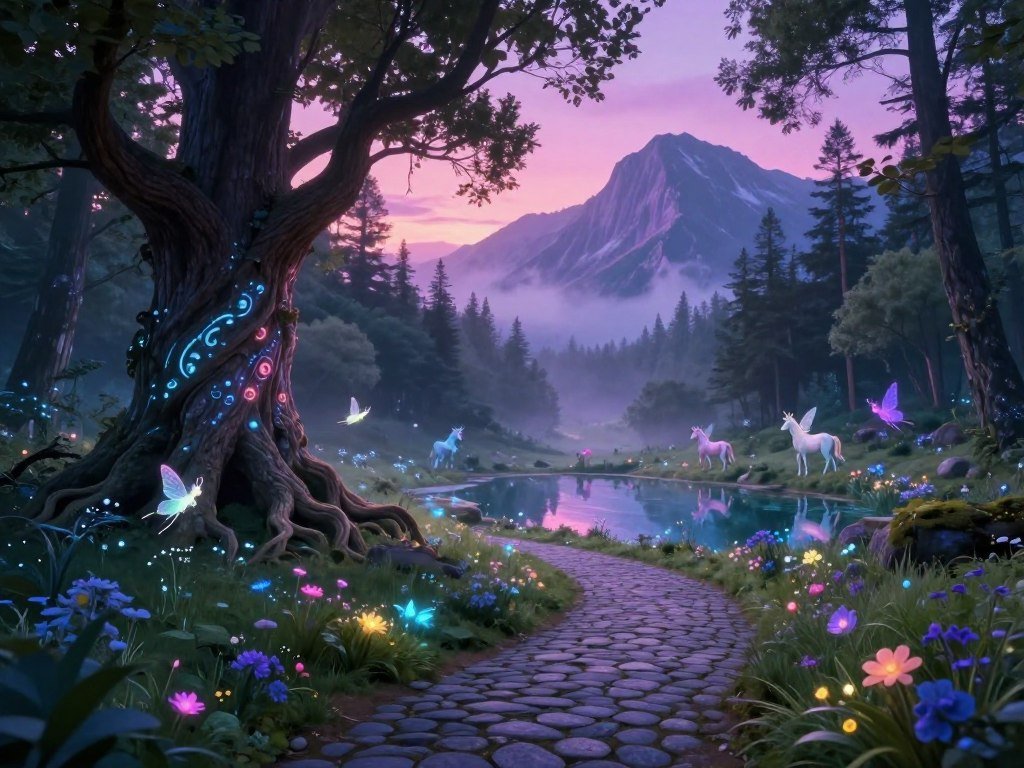
- A campaign concept that sets a visual direction for an upcoming promotion.
- A classroom visual that helps explain a science or history topic.
- A fantasy scene for a story, game idea, or personal art project.
- A product mockup that tests a shape, color, or package idea.
These examples show how one text image workflow can support different needs. You can describe a setting, name the subject, and ask for a certain kind of image. The first result may give you an idea you had not pictured clearly before.
Treat the first output as a draft when exact details or factual accuracy matter.
Images can include details that look convincing but do not match reality. A product label may contain errors, and a classroom scene may show the wrong tool or setting. Check those details before sharing the visual as an explanation or product view.
Text-to-image tools can help you explore concepts quickly, but they do not replace subject expertise. A generated image may simplify a real object or add elements you did not request. Treat the first output as a draft when exact details or factual accuracy matter.
How to use an AI image generator online
You can start with words, a preset, or a reference image instead of opening a blank design canvas. The generator brings together 65 AI image models for different kinds of work. That range lets you choose a starting point without building a visual from scratch.
You can select from 100 presets and 48 style filters to set an initial direction. Enter a text prompt, pick a preset, or upload a reference image. Then choose a model that fits the kind of result you want to explore.

Use these three setup actions in order:
- Choose an input: write a prompt, select a preset, or upload a reference image.
- Select a model or preset that gives the image a useful starting direction.
- Set the aspect ratio manually, or let the model adjust it where available.
A reference image can help guide the result’s look or layout. A preset offers a ready-made direction, while a written prompt lets you describe the idea directly. You can also combine an image with written instructions when the workflow supports it.
The aspect ratio shapes the canvas before the model creates an image. A square frame may suit a profile post, while a tall or wide frame can fit other placements. Starting with the right shape can reduce unwanted cropping later.
Choose the aspect ratio before generating so the composition begins in the shape you need.
Which image model fits your project?
For a flexible starting point, choose ChatGPT; pick another model when its specific strength matters more. ChatGPT is an approachable all-around choice for many users, with a conversational way to create images. Other models can suit a narrower style or task.
Match the model to the work you need it to do, not to a ranking alone. Zapier’s 2026 picks include these five options for different needs:
| Model | Best fit | Practical distinction |
|---|---|---|
| ChatGPT | General image creation | Approachable conversational workflow |
| Nano Banana | Google users | Fits Google’s image tools and services |
| Midjourney | Artistic exploration | Useful for distinctive visual styles |
| Adobe Firefly | Photo integration | Designed to add generated images to photos |
| Recraft | Graphic design | Focused on graphic design assets |
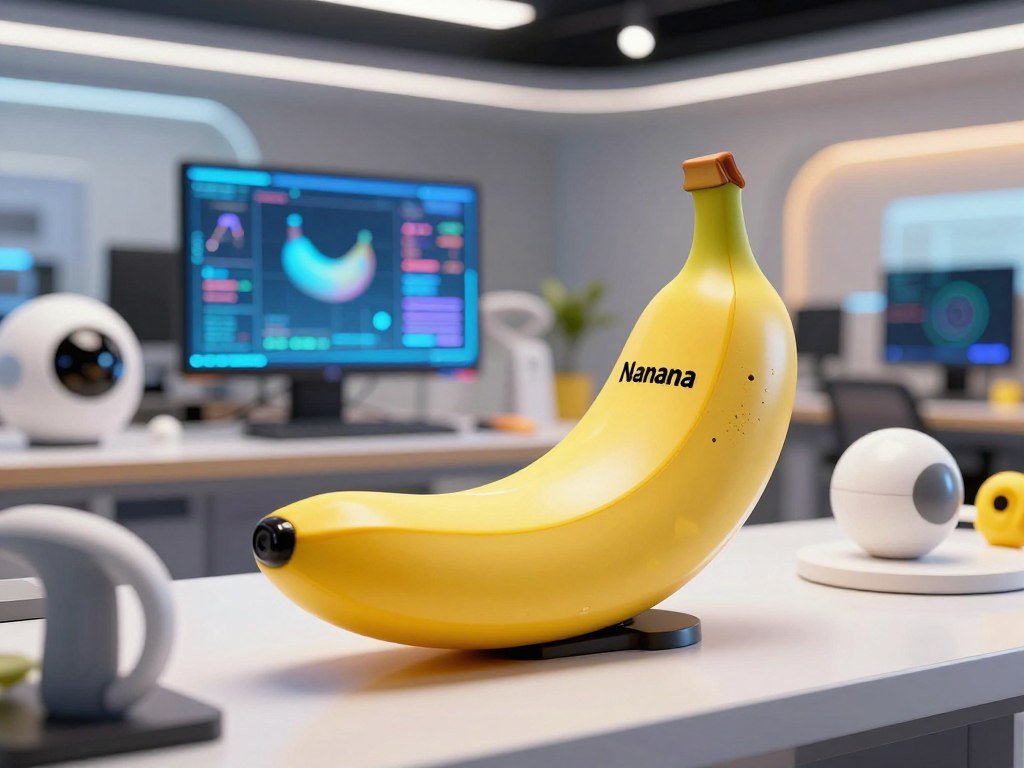
These options are not interchangeable in every workflow. Nano Banana may suit someone already using Google products, while Midjourney can help with artistic experiments. Adobe Firefly focuses on blending generated elements with photos, and Recraft targets graphic design.
Muse Image adds another option with broad availability. On Arena votes through July 10, 2026, it ranked third in text-to-image with an Elo score of 1280.4. It ranked second in image editing with an Elo score of 1402.4. Arena’s Muse Image ratings reflect those votes, not a promise about your own results.
ChatGPT’s ease of use and overall image-generation quality make it a practical starting point for many projects. A focused need can point you toward a different model. Test the same idea in two models when the project depends on a particular visual style or editing behavior.
How do you write an AI image prompt that works?
A strong prompt tells the model what matters most before adding decorative detail. Begin with the purpose, then name the subject and where you plan to use the image. This keeps the main idea clear from the first line.
A prompt works best when its main request stays easy to spot. Add a small set of details that shape the result instead of piling on every idea at once.

Start with the goal, subject, and use case
Name the goal first: a product concept, an event poster, or a scene for a story. Then state the subject in plain terms. A prompt for a coffee mug might ask for a clean product image for an online shop.
The use case helps set the visual direction. A social media post may need open space for a caption, while a story illustration can focus on mood. Tell the model what the image should help you do.
Add visual details and set the aspect ratio
Add four to six high-signal details, such as medium, style, lighting, framing, mood, and color palette. For the mug, you might request a close view, warm morning light, a pale background, and a handmade ceramic texture. Each detail should guide a visible choice.
Select the aspect ratio before generation so the image starts in a suitable frame. When you revise a result, change one element at a time. If you change both the lighting and the camera angle, it becomes harder to tell which instruction helped.
Adjust prompt style to the model
ChatGPT can work well with paragraph-style prompts and follow-up edits in a conversation. Midjourney V7 often responds well to short, high-signal phrases and reference images. Stable Diffusion 3.5 can use structured prompts with weighted keywords that stress certain elements.
A paragraph lets you explain the scene in a natural order. Short phrases keep attention on a few important visuals. Structured prompts give you a way to assign more or less weight to chosen terms.
A prompt should leave room for the model to interpret minor details while protecting the main idea. If a result is close, change just one instruction so you can see which adjustment made the difference.
How can you refine an image without starting over?
A near-right result is often easier to improve with a targeted revision than with a completely new prompt. Keep what works and make a focused change to the part that feels wrong. This can preserve a subject or layout you already like.
A reference image can guide a new version, while a direct edit can change a selected detail. The right choice depends on whether you want a fresh interpretation or a local adjustment.
Guide a new version with a reference image
Image-to-image work starts with an existing image, rather than text alone. The reference image can guide the style, composition, or key subject of a new version. It gives the model visual information to work from.
For example, you could use a rough room sketch to guide a polished interior scene. A reference image can also help keep the color mood close to an earlier draft. The model may still change details, so compare the new version with the reference.
Make local edits with conversational instructions
Some tools let you describe a change in everyday language. You could ask to replace a red bag with a blue one while keeping the person and pose. Or you might ask for a softer background without changing the main subject.
Pexo supports text-to-image creation and image-to-image editing through conversational instructions. It uses credits for generation. DeeVid offers reference uploads and tools such as Erase & Replace, Expand Canvas, Background Remover, and Upscale. These are examples of other products, not features of this generator.
Generation often takes seconds, though complex prompts, larger sizes, or heavy edits can take longer. A research project called RefineEdit-Agent tests iterative edits designed to preserve context while changing specific image details.
Prepare the finished file for its next use
Before downloading, check the crop, clarity, and fit for the image’s destination. Make sure the subject remains visible at the size where people will see it. A wide image can lose important details when cropped into a narrow post.
Keep the version that best preserves the details you need, not simply the one with the most dramatic change.
What does free image generation include?
Free access can be enough to test an idea, while recurring use makes each tool’s limits and paid terms important. Free plans differ in how many images you can make and which features they include. A paid plan may offer more room, but its terms vary by service.
Free access is useful for trying a workflow, not a promise of unlimited generation. These services offer different free and paid arrangements:
| Service | Free access | Paid option or allowance |
|---|---|---|
| ChatGPT | Image generation with more restrictions | ChatGPT Go starts at $8 per month |
| Google Gemini | Limits vary by use and demand | Google AI Plus starts at $4.99 per month |
| Midjourney | Paid plans listed here | Basic starts at $10 for roughly 200 images |
| Adobe Firefly | Limited free daily use | Plan starts at $9.99 per month for unlimited image generation |
Free ChatGPT image generation has more restrictions than paid access. ChatGPT Go starts at $8 per month and offers fewer restrictions than the free version. A free AI image generator in ChatGPT can still help you try the basic workflow.
Google Gemini limits depend on prompt complexity, the models and features used, and chat length. Limits refresh every five hours until a weekly limit is reached. Google may change them without notice or adjust them during high demand. Gemini’s changing usage limits can affect how much you create in one session.
Google AI Plus starts at $4.99 per month. Midjourney Basic starts at $10 per month for roughly 200 images, while Standard starts at about $30 for unlimited relaxed generations. Adobe Firefly offers limited daily free use and a plan starting at $9.99 monthly for unlimited Firefly image generation.
A free Meta AI image generator is available across Meta’s listed products, but Meta had not published a daily image quota for Muse Image in 2026. DeepAI Pro includes 500 standard, 60 Genius Mode, and 10 Super Genius 2K images monthly. Extra images cost $0.01, $0.08, and $0.25 each, respectively. DeeVid offers a free trial, with paid plans adding higher limits, priority speeds, and advanced tools.
Check the current plan terms before relying on a particular number of generations.
Which tool fits your creative workflow?
Choose the tool that fits the work around the image, not only the first image it generates. ChatGPT is a strong general starting point when you want to create through conversation. Other tools can fit work that calls for art, photo editing, or design assets.
A model choice affects image creation, while a workflow also covers editing and finishing. Think about what you need to do after the first result appears.
- Conversational creation: Try ChatGPT for image generation through ChatGPT and its API.
- Artistic experimentation: Use Midjourney to explore distinctive visual directions.
- Photo editing: Choose Adobe Firefly when you want to blend generated images into photos.
- Graphic-design assets: Try Recraft for visuals made for graphic design work.
Each option serves a different kind of task. ChatGPT can be a simple place to begin when you want an image and a way to refine it through conversation. Midjourney suits artistic exploration, while Firefly and Recraft focus on different kinds of design work.
Nano Banana is another option for Google users. You may also want a separate tool when your project moves from still images into animation or video. Runway, for example, offers generative tools for creating videos, images, and animations for filmmakers and designers.
Businesses building new content services can also explore AI data startup ideas for broader examples of AI work. A focused creative workflow can support a small content team, but its fit depends on the kind of work you plan to deliver.
Before committing to a workflow, test whether it handles both creation and the edits your project needs.
What image size and aspect ratio should you choose?
Pick the shape for the final destination first, then check the selected model’s available pixel dimensions. Aspect ratio describes the relationship between an image’s width and height. A square, portrait, or landscape frame can suit different placements.
The destination and model both shape the size you can use. These maximum output sizes show how options can differ:
| Model | Maximum output | Practical note |
|---|---|---|
| GPT Image | 1024 × 1792 pixels | Tall output is available |
| Adobe Firefly Image 4 | 2048 × 2048 pixels | Square output up to 2048 pixels |
| Google Imagen 4 or Nano Banana | 1536 × 1536 pixels | Square maximum listed |
| Ideogram 3.0 | 1280 × 1280 pixels | Square maximum listed |
| Leonardo AI | 1536 × 1536 pixels | Square maximum listed |
Other models set different limits. FLUX 1.1 Pro and Adobe Firefly Image 4 each reach 2048 × 2048 pixels. Canva Magic Media reaches 1024 × 1024 pixels, while Midjourney V7 creates about 1024 × 1024 pixels natively and can upscale to roughly 2048 × 2048 pixels. CapCut supports export up to 8K.
Pexo supports common social media and advertising aspect ratios, while its maximum resolution depends on the model. DeeVid’s available output sizes depend on its model and plan. Before generating, check these three points:
- The destination format, such as a square post or portrait story.
- The selected model’s available size and aspect ratio.
- Whether upscaling will preserve the detail your image needs.
A larger file does not always make a better fit for a small placement. Some image details can look soft after enlargement, while a tight crop can cut off a key subject. Preview a crop at the intended placement before treating a generated file as production-ready.
How can you edit images after generation?
Editing is most useful when you can name the one part of an image that needs to change. A clear target helps you choose between removing an element, extending a frame, or improving detail. The right tool depends on the problem.
Removing a background and replacing an object are different edits. One cuts away the scene behind a subject; the other changes a selected item within the image.
Remove or replace distracting elements
A background remover separates the subject from the scene behind it. You might use one to place a product on a plain background. Erase and replace tools target an object or area, then create new content in that selected space.
For example, you could remove a stray sign from a street scene or replace a cup on a table. Check the edges around the edited area, since a change can leave a soft outline or an odd shadow. A small edit can still affect nearby parts of the photo.
Expand the frame and improve image clarity
Outpainting adds new content beyond the original frame. It can extend a room, sky, or landscape when the current crop feels too tight. Upscaling enlarges an image and can improve clarity, sharpness, or detail.
Leonardo.Ai offers image enhancement, frame expansion, and background removal tools. Its Universal Upscaler adds clarity, sharpness, and detail. Those named tools are examples from Leonardo.Ai, not features of every generator.
A larger file may help with a new placement, but the added detail can look artificial. Check faces, product edges, and small marks at their final display size. Research on the AnyEdit image-editing work covers a wide range of instruction-based changes.
Keep a character or style consistent
Repeated visuals need a stable look across scenes. Midjourney V7 offers style references and tools for keeping characters consistent. A reference can help carry a character’s design or the feel of an artwork from one image to another.
Inspect fine edges and important small details after an edit or upscale.
How do you get readable text and a consistent visual style?
Text inside a generated image can be useful, but it still deserves a careful spelling check. Check each character in names, labels, and numbers before using the image. A nearly correct word can still make a design unusable.
Review important lettering character by character before sharing the final visual. Some models focus on typography, while others may suit a particular prompt style.
Ideogram is a typography-focused option for visuals with lettering. Seedream 4.0 works well with short, precise prompts. Clear instructions can help you keep the subject and look steady across related images.
Meta launched Muse Image on July 7, 2026, as its first image model built entirely in-house by Meta Superintelligence Labs. Meta says Muse Image can blend multiple photos, render readable text, apply style transfers, and restore old photos. It can also accept markup that points to areas for changes.
Muse Image can search the web, write and run code for charts and QR codes, and revise its own image drafts. These features show how an image model may support more than a single text prompt. They do not remove the need to inspect the result.
Use a steady visual direction when you create a group of assets. Keep the same subject details, palette, and mood across prompts when the images need to feel related. For brand-critical lettering, verify the final image against the exact copy before publishing.
What should you know about image rights and provenance?
A generated image’s appearance does not by itself settle whether or how you can use it. Check the terms of the specific service and the use you have in mind. A polished result does not prove that every right or permission is in place.
Do not assume commercial permission from a finished-looking image. The terms for a service and the details in the image both matter.
Review permissions before using an image commercially
Before using an image in an ad, product, or paid project, read the terms that apply to that service. The intended use matters, and terms can differ between tools. A result that looks ready for a campaign does not settle how you may use it.
Review the image itself, too. It may contain a logo, a recognizable person, or an object that raises questions for your project. Do not treat a visual result as proof that those details are cleared for your use.
Know what a provenance signal can and cannot do
Images made in the Meta AI app and on meta.ai carry Content Seal, a hidden provenance signal. In 2026, it was designed to remain through cropping, compression, resizing, and screenshots. The signal can help show where an image came from.
Provenance is not a usage license. It does not prove that every person, brand, or other element in an image is cleared for your use. The signal and the service terms answer different questions.
Check the final asset before sharing it
Review text, likenesses, and details that could mislead someone. A generated visual may show a product feature that the real product does not have. A chart or label may look clear but contain incorrect information.
Save the final asset with a record of the service and terms that applied when you created it.
A short record can help you recall how the asset was made and which conditions applied. Save the prompt or reference details when they help explain the image’s origin. Keep the final file with its record rather than relying on memory.
Can you generate images on a phone?
Yes, several image-generation workflows are available through phone apps, while others use a browser or Discord. The access route can shape where you create and review your images. Pick an option that works on the device you plan to use.
Check the app’s current model menu when you need a specific model. These tools offer different ways to get started:
| Tool | Access route | Model or workflow note |
|---|---|---|
| Muse Image | Meta AI app, meta.ai, Instagram Stories, WhatsApp | Available for everyday image creation |
| Midjourney | Web app and Discord | Two access routes for its workflow |
| ChatGPT | ChatGPT and its API | Image generation through ChatGPT |
| Leonardo.Ai | iOS and Android apps | Listed model menus differ by device |
Muse Image is available for everyday image creation in the Meta AI app, on meta.ai, in Instagram Stories, and on WhatsApp. Midjourney works through a web app and Discord. ChatGPT image generation is available through ChatGPT and its API.
Leonardo.Ai’s iOS app supports models including Nano Banana, Seedream, FLUX, and its own models. Its Android app lists Nano Banana by Google, GPT image models from OpenAI, and Leonardo’s own models. Since those menus differ, check the app’s current model menu before choosing a device.
A phone can be handy when you want to make an image while away from a desk. A browser or desktop workflow may suit work that calls for a larger screen. Choose the access route that makes it easy to review and save the final file.
What can you make with generated visuals?
A single generated visual can support anything from a social post to an early storyboard frame. Start with a real project and decide where the image will appear. That purpose can guide the composition and the style.
Generated visuals can help you test an idea, but factual and product details need review before publication. Here are five ways to put one to work:
- Social media posts that introduce an idea, event, or product.
- Product showcases that explore a setting or visual direction.
- Ad and video thumbnails that frame a campaign or clip.
- Digital comics or storyboards that map scenes and characters.
- Educational explainers that pair a visual with a learning point.
CapCut offers a separate image-to-video workflow. It supports text-to-image and image-to-image generation, with Seedream 5.0 and Nano Banana Pro. You can turn a generated still into a short video clip with motion effects, transitions, background music, and text.
CapCut’s mobile workflow supports Android and iOS. That makes it one example of a tool that joins image creation with short video work. It is separate from this generator’s image features, so the workflows should not be confused.
A product showcase may help you test the mood of a brand before arranging a real shoot. For naming work, a business name generator can help you explore possible names alongside a visual concept. Check the name’s domain and social handles before building a campaign around it.
For a small team, an AI-assisted content studio can turn images into part of a broader service. You can explore tech startup ideas in the USA for examples of business models built around AI and content. Photography also remains useful for real product shots and people; starting a photography practice can help you plan that work.
Start with the project that has a clear audience and destination, then shape the visual to fit it.
Conclusion
A clear idea is enough to begin creating a visual that fits your project. Start small with a focused prompt and a model suited to the work. You can revise a first result instead of treating it as final.
Choose one visual goal, then make a first version you can judge. Look at how well it fits your subject, use, and intended style. A small adjustment can bring a promising draft closer to what you need.
Keep the next step simple. Enter your prompt, choose a style and aspect ratio, and generate your first version.
FAQ
Is there a completely free AI image generator?
Yes, several tools offer free access or trials, but their limits and features differ. ChatGPT, Google Gemini, Adobe Firefly, and Meta AI each provide ways to try image generation. Some restrict how often you can generate, while others limit tools or access. Check the service terms that apply to your account before planning repeated use.
How many images can I generate for free each day?
The number depends on the service and its current rules. Meta had not published a daily Muse Image quota in 2026, while other tools set their own allowances. Google Gemini limits can depend on prompt complexity, features, and chat length. A daily figure may not reflect weekly caps or temporary limits during high demand.
Can AI image generators spell words correctly inside an image?
Some models focus on typography, but you should check every word and character before using the result. Ideogram is a typography-focused option, and Muse Image can render readable text. A model can still misspell a name, change a number, or create a letter that looks wrong. Compare important wording with your exact copy.
Can I use AI-generated images commercially?
Check the specific tool’s terms and your intended use before using an image commercially. Do not assume that a polished result comes with commercial permission or clears every element in the image. Review any visible logos, likenesses, labels, or product details. The conditions can differ across services and may depend on how you plan to use the asset.
How do I keep the same character consistent across images?
Use a reference image and tools made for style or character consistency. Midjourney V7 offers style references and character-consistency tools that can help carry visual details across images. Keep the character’s key features clear in each prompt, such as clothing, colors, and face shape. Review each result, since references guide a model but do not guarantee identical details.
Can I turn an AI-generated image into a video?
Yes, some separate workflows can turn a still image into a short video. CapCut offers image-to-video tools with motion effects, transitions, background music, and text. The still can become a starting frame for a clip, though the movement may change how details appear. Review the finished video before sharing it as a product or factual presentation.
What aspect ratio should I use for a social media image?
Match the image’s aspect ratio to the social media placement first. A square, portrait, or landscape frame may fit different post types, stories, or thumbnails. Then check the selected model’s available ratios and output dimensions. Preview the crop in its intended placement, since a layout can hide edges or important parts of the subject.
About The Author