AI Video Generator for Simple Video Creation Online
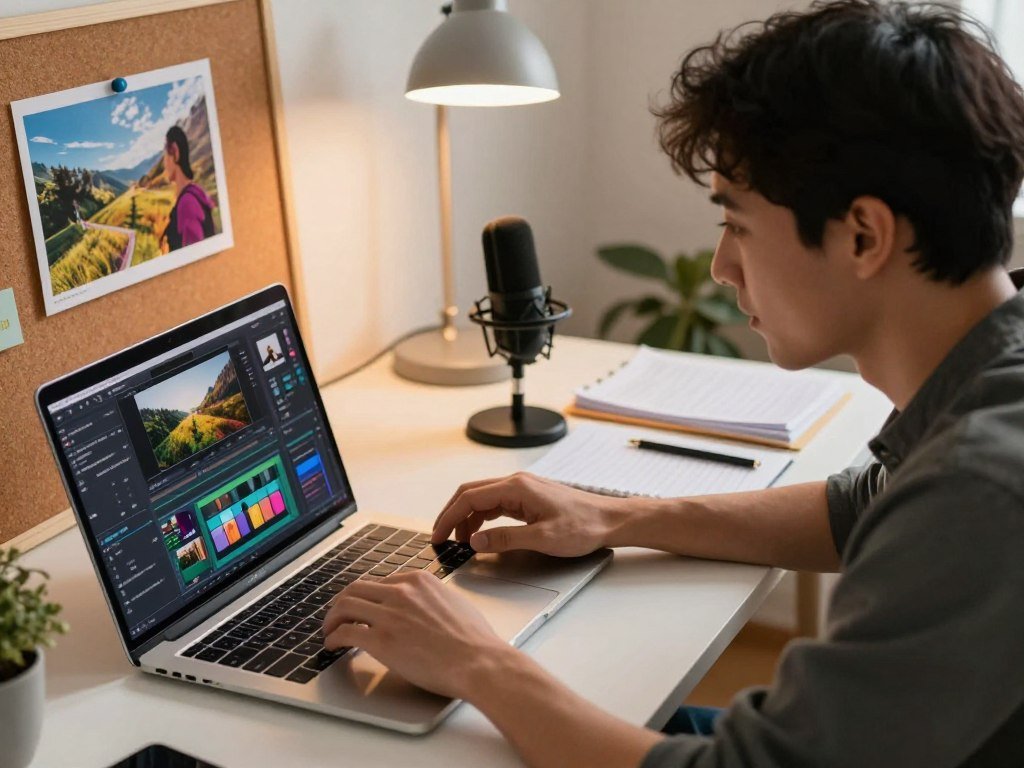
A short written idea or a single reference image can be enough to start building a video draft. OpenArt gives you one place to create, animate, restyle, edit, and finish video without switching among separate tools. A reference image is a still image supplied to guide the appearance or motion of a generated clip.
Your model choice, generation allowance, and output controls shape the workflow. OpenArt can help you turn a rough idea into useful content, whether you are testing a style or building a first cut. Start with a clear direction, then adjust the settings to suit the result you need.
Invite your idea in with a prompt or an image that already captures the look you want.
Key Takeaways
- Start a clip from text, a still image, or existing footage.
- Choose a model and settings that fit the shot and output you need.
- Review credits, export limits, and usage rights before publishing.
- Use edits, sound, and captions to shape a draft for its audience.
- Make one small test in OpenArt before building a larger project.
What Can You Create With an AI Video Generator?
A social creator can draft a short vertical clip, while a marketer can build a product demo or an ad variation from a still. OpenArt supports social clips, paid social ads, branded stories, product demos, and training content. Its range suits both personal projects and business drafts.
Short clips can fit TikTok, Instagram Reels, YouTube Shorts, X, Facebook, or LinkedIn. Product demos can show an item in use for an e-commerce page, while branded stories can support a campaign. A quick concept draft is not the same as a finished piece that has passed human review.
Check every generated detail before publishing, especially product claims, text, and brand elements.

Narrated visuals can help explain a process in training content or a short explainer. A small business can also use video to share its story and keep visual choices aligned with its brand, as discussed in these food business branding tips.
Creators exploring content as a source of income may pair video with a channel, blog, or freelance service. This guide to online business ideas covers ways to begin with time and skills rather than a large budget.
Companies testing AI-assisted marketing can also explore services such as product content and brand planning. These 2026 tech startup ideas include AI-supported content work that can grow into a business service.
Choose the format and message for the channel before generating several versions. A cut made for a phone feed may need a different pace than a website video.
How Do Text Prompts and Images Become Clips?
Start with text when the scene exists mainly in your imagination, and start with an image when its appearance already matters. OpenArt supports text-to-video, image-to-video, and video-to-video workflows. Each input gives the model a different starting point.
Use a text prompt for a new scene and a reference image when a specific look needs to guide the clip. Your plan determines which tools and generation allowance you can use.

Start with a text prompt
A text prompt can describe a scene, action, setting, and mood. For example: “A red bicycle rolls past a quiet cafe at dawn, with soft, hopeful light.” The model uses those details to build a video from text.
A free AI video generator with a prompt can make a draft from written direction. A free AI video generator from text starts without a supplied still. Access and limits depend on the selected plan.
Keep prompt details focused so the main action stays clear. A useful prompt checklist includes:
- Subject: name the person, object, or animal in the shot.
- Action: state the single movement you want to see.
- Setting: give the place, time, or background.
- Mood: describe the feeling or visual tone.
Animate a reference image
A still can guide a product animation, portrait, or scene. It gives the model a visual starting point, which can help when color, clothing, shape, or composition already matters to your project.
A free AI video generator for image-to-video animates a supplied image, subject to plan access and limits. The image can inform how the clip looks, while your direction tells the model what should happen.
For a product shot, you might ask for a slow turn on a clean tabletop. A portrait could show a gentle smile, while a landscape might add moving clouds.
Give the model one clear action to show instead of several unrelated actions in the same prompt.
Which AI Video Model Fits Your Idea?
Choose a model for the shot you need, not simply the model with the most familiar name. OpenArt offers access to 100+ premium image, video, and audio models, with availability shaped by tier and geography. Task fit matters more than a long list of names.
Check each model’s inputs, output details, and access conditions before using credits. The models one place view can help you compare options for a specific generation.
| Model | Useful for | Input or output detail | Access condition |
|---|---|---|---|
| Seedance 2.5 | Motion and dance generation | Script or reference-image workflow | CapCut workflow |
| Veo 3.1 | Photorealistic output | 4K video | Availability depends on platform |
| Kling 3.0 | Cinematic styles | Text and image workflows | Availability depends on platform |
| Gemini Omni 1.1 Flash | Quick clips from text or photos | 10 seconds or up to 5 photos | Paid Google AI subscription; tier and geography limits |
Seedance 2.5 suits clips where lively movement is central. Veo 3.1 supports 4K video, while Kling 3.0 offers text and image workflows for cinematic styles.
Gemini Omni 1.1 Flash creates 10-second videos and can turn up to five photos into a video. It requires a paid Google AI subscription, and access varies by tier and geography.
A free AI video generator from Google does not mean Gemini Omni access is included for free. Gemini app videos contain SynthID, an imperceptible marker that helps identify AI-generated content, not an on-screen logo.
Check the selected model’s inputs and output settings before spending credits.
How Can You Shape Style, Motion, and Camera?
If the subject looks right but the mood does not, adjust the visual direction before rewriting the entire scene. A style choice changes the look, while a camera instruction describes how the view moves or frames the subject. Separate those controls to see what changes.
Restyle Video can apply preset directions to footage you already have. OpenArt also includes Motion Sync, Smart Shot, and VFX tools for movement, angles, backgrounds, and lighting.

Restyle a clip or set a visual direction
Restyle Video lets you compare preset looks on existing footage. You can try a new visual style without changing the basic subject or scene from scratch. Review the clip closely because restyling may also alter details that matter.
VFX tools can change a background or adjust lighting. These edits can help a subject sit in a different setting or give a scene a brighter, darker, or more dramatic feel.
A style describes qualities such as color, texture, or overall mood. A camera instruction describes what the viewer sees as the shot unfolds.
Guide movement and camera framing
Camera directions can ask for a pan across a room, an orbit around a product, or a zoom toward a face. A tracking shot follows a moving subject. Try one movement at a time so the shot stays easy to read.
Motion Sync transfers movement from a reference video to generated content. Smart Shot can lay out multiple angles of one scene, which helps when a single view feels too flat.
Several camera moves in one instruction can compete for attention. Use one camera instruction at a time when you need to tell whether a specific movement improved the shot.
Can You Edit Existing Footage and Add Sound?
You can often change a background or remove an unwanted object without regenerating the entire clip. OpenArt supports targeted editing, and some models also create audio. Small edits can save time when the main shot already works.
Audio generation is available only on supported models, but voiceover or music can also be added afterward. The right voice depends on its sound and fit, not just its language count.
Make targeted edits to a clip
Runway’s Aleph 2.0 and Apps can change objects, lighting, and backgrounds. You might remove a distracting item, add a missing detail, or swap a backdrop while keeping the rest of the shot.
These edits can be more useful than rebuilding a scene that already has the right framing. Check edges and shadows after a change, since edited objects may look out of place.
Add voice, captions, and music
InVideo AI offers voiceovers in more than 50 languages. Fliki supports 2,000+ AI voices in 80+ languages and 100+ dialects. Those counts give you options, but they do not prove that a voice suits your topic or audience.
InVideo and Fliki support AI voice options, while Runway supports dialogue or music on supported models. Fliki text-to-video supports 9:16, 1:1, and 16:9 exports. Its voice and language options can help when you need narration in a particular language.
Before export, use this finishing checklist:
- Review voice pronunciation, including names and product terms.
- Check subtitle timing against each spoken line.
- Balance music so it sits under speech.
- Confirm the aspect ratio suits the destination.
Listen once with headphones before export so that music does not bury narration.
How Do You Keep a Character Consistent Across Clips?
A recognizable character can still look different from shot to shot unless you guide the model with a consistent reference. OpenArt includes Character Builder and Motion Sync for appearance and movement guidance. Continuity takes planning across separate clips.
A reference can guide a character’s look, but it cannot promise identical results in every frame. Use the same visual anchor and check each generated shot before assembling a scene.
Use a visual reference
Keep a character reference image that clearly shows the face, clothing, and body shape. Reusing it can help the model keep those features steady across different shots.
Character Builder can help set up a visual identity for repeated use. Runway references can also help retain a character’s appearance across shots, though small changes may still appear.
Researchers have explored reference frames, or content anchors, to reduce visual drift. The Gloria character consistency paper describes anchors that show a character’s look from different views and expressions.
Match the performance to the scene
A reference video can guide posture, gestures, and pacing. Motion Sync can transfer movement from a reference video, helping a character’s performance fit the action in a new clip.
Pick movement that suits the scene. A character explaining a product may need small hand gestures, while a dance scene needs a different pace and body motion.
Compare the face, clothing, and proportions across the assembled shots before treating them as one continuous scene.
What Makes a Video Ready for Social or YouTube?
A clip that looks good in a wide preview can still feel cramped in a vertical social feed. A free AI video generator for YouTube still needs a format and audience decision. Placement should guide the final cut.
Choose the aspect ratio, duration, resolution, and captions for the specific place people will watch. A Shorts clip and a website hero visual may need different framing and pacing.
Social clips, branded stories, paid social ads, and website hero visuals all need different choices. TikTok, Instagram Reels, YouTube Shorts, X, Facebook, and LinkedIn each give you a different audience and viewing context.
A phone screen can make small text hard to read, even when it looks clear on a desktop. Check titles, captions, and key product details at the size people are likely to see them.
Before posting, use this quick readiness check:
- Confirm the destination and matching aspect ratio.
- Check that text and key visuals remain legible on a phone.
- Review captions and audio for timing and clarity.
- Preview the opening seconds for a clear start.
Watch the exported file at the size and orientation your audience will see.
Which Free AI Video Tools Can You Test Online?
Free access can mean a one-time credit balance, a daily refill, or a capped number of finished videos. A free AI video generator online can have credit, duration, or export caps. “Free” does not promise unrestricted use.
A free AI video generator with no restrictions is not a safe assumption. Compare the usable output you get during each reset period, not only the starting credit number.
Compare free allowances before you start
As of October 23, 2026, these plans list different starting allowances and caps. Generation costs can vary by settings, so the same credit balance may produce different amounts of video.
| Tool | Stated free allowance | Reset or output limit | Useful distinction |
|---|---|---|---|
| PixVerse Basic | 60 initial credits | 30 credits reset daily | Cost varies by settings |
| Runway | 125 credits | One-time, no monthly refill | Selection of models |
| Canva | Limited Magic Media generations | Monthly allowance | 1080p export on most templates |
| HeyGen | 3 videos | Up to 3 minutes each at 720p | Stock-avatar workflow |
| InVideo AI | 10 minutes | 4 exports per week | Generation and export cap |
PixVerse Basic lists 60 initial credits and 30 daily credits, with generation costs that vary by settings. Runway lists 125 one-time credits, with no monthly refill. Pika lists zero included monthly credits, so users must buy credit packs to generate videos.
Find an option that fits your workflow
Leonardo.Ai’s free plan lists 150 fast tokens per day and includes access to video generation. Arcade offers 200 AI credits per month, while Canva limits Magic Media generations each month.
HeyGen’s free plan includes three videos, each up to three minutes and 720p. InVideo AI includes 10 minutes and four exports per week. Fliki’s free-forever plan has monthly video minutes, needs no credit card, and adds a small watermark.
Renderforest script-to-video projects can run up to 12 minutes. That project length is not a claim about a free allowance.
Check what “free” means in an app
A free AI video generator app may cost nothing to download while generation or other features require in-app purchases. The InVideo iOS app is listed as free with in-app purchases and access to 200+ AI models for images, video, voice, sound, and music.
Compare the usable output you get per reset period, not just the word “free.”
What Should You Check About Credits, Exports, and Rights?
Before you publish, check the exact plan, output, and asset terms rather than assuming that a clean-looking export is licensed for every use. OpenArt’s credit tiers pair monthly allowances with estimated video counts. Those counts are estimates, not a fixed exchange rate.
Watermark removal and commercial-use permission are separate conditions. Your rights can also depend on images, voices, templates, and other assets in the project.
Compare credits and output limits
OpenArt lists four plans with different credit amounts and estimated video output. The estimates below exclude Director, and actual output depends on how you use the generation allowance.
| Plan | Monthly credits | Approximate videos excluding Director | Commercial-use rights listed |
|---|---|---|---|
| Starter | 4,000 | About 50 | Not listed |
| Plus | 12,000 | About 150 | Listed |
| Pro | 24,000 | About 300 | Listed |
| Wonder | 106,000 | About 1,300 | Listed |
All four listed OpenArt plans are watermark-free. Commercial-use rights are listed for Plus, Pro, and Wonder, but not for Starter.
Check watermarks, downloads, and privacy
PixVerse Basic lists output up to 540p, and watermark-free export is a paid-plan benefit. Runway lists watermark-free output on paid plans. These facts describe export limits, not usage rights.
Leonardo.Ai free creations are public, and free users have access only to the Auto model setting. Canva supports 1080p export on most templates. Canva exports stay watermark-free with free templates and elements, while a Pro asset adds a watermark.
HeyGen free users can download videos, and free-plan videos can be used commercially. Its paid Creator plan removes the watermark. Arcade’s free plan allows three published demos, one Brand Kit, AI voiceover, and commercial-use rights.
Arcade free demos carry watermarks, and the free plan excludes GIF and MP4 export. Arcade Pro is listed at $32 per month, removes watermarks, and adds export. Synthesia Basic includes 1,200 credits monthly, enough for up to 10 minutes of video, and nine AI avatars.
Synthesia Basic includes one editor. Starter adds video downloads and removes the Synthesia logo. Check whether a plan makes creations public, limits downloads, or changes resolution before building a project around it.
Confirm commercial-use terms
A watermark-free video does not automatically include commercial permission. Pika’s free plan does not include a commercial license, even though its pricing page lists no-watermark output.
Commercial permission for a tool may not cover every item you add. A stock image, voice, music track, or template can have separate terms that affect a paid ad.
Save a copy of the applicable license terms with the project if you plan to use the video in paid marketing.
How Do You Create Your First Clip?
For a first attempt, keep the idea to one subject, one action, and one clear setting. That gives OpenArt a focused direction and makes the preview easier to judge. Simple starts are easier to adjust.
Confirm the selected model’s settings and current credit use before you generate. CapCut’s Seedance 2.5 workflow is one example, with script or reference-image input and post-generation editing.
Set up the generation
Use this four-step workflow as a starting point, then adapt it to the controls available in OpenArt:
- Choose a text prompt or upload a reference image.
- Select the model, style, aspect ratio, and duration.
- Generate the clip and inspect its preview.
- Edit sound, subtitles, and visuals, then review export settings.
CapCut’s Seedance 2.5 workflow starts from a script or reference image. It supports choices such as style, aspect ratio, voiceover, and duration.
Review, edit, and export
Watch the preview for wrong details, awkward motion, and unclear framing. Fix the most noticeable issue first, then review the new version before adding more changes.
CapCut’s desktop workflow includes scenes, voiceover, subtitles, and music. Its export settings include resolution, format, and frame rate.
Export a short test first when you are unsure how a model will interpret the prompt.
Use that test to judge the motion and look before spending credits on a longer version. A short preview can also reveal whether your prompt needs one small change.
Conclusion
The easiest way to judge a video workflow is to test it on one small, specific idea. Start with the input that best represents your idea, whether that is a written direction or a still image.
Choose controls and a plan based on the finished output you need, including its length, format, and intended use. Open OpenArt, enter a focused prompt or upload a reference image, then preview a first variation.
Start with a prompt or reference image and create a first variation in OpenArt.
FAQ
How many credits does one AI video generation use?
One AI video generation can use different credit amounts depending on the selected model and settings. Longer output, higher resolution, or added features may change the cost. Check the displayed credit cost before generating, then compare it with your remaining balance. A short test can help you judge the result before using credits on a larger version.
Can I turn an existing video into a different visual style?
Yes, video-to-video restyling can apply a new visual style to existing footage. OpenArt’s Restyle Video offers preset directions for footage you already have. The new look may change important details, so review faces, products, and text after processing. If the subject is right but the mood feels off, trying a style preset can be faster than rebuilding the whole scene.
Can I extend a short AI-generated clip into a longer video?
Yes, some workflows can extend a clip or join multiple generations into a longer edit. The available method depends on the tool and model you use. When the same person or place appears across new shots, keep reference images or other continuity guides consistent. Review the joins closely, since motion, lighting, or character details may shift between generations.
Can I use AI-generated video in a paid advertisement?
Yes, when the selected plan’s commercial-use terms allow it and every included asset has suitable rights. Check the plan terms for the video tool, then review licenses for templates, images, voices, music, and other assets. A clean export or a watermark-free file does not prove commercial permission. Keep the applicable terms with the project so your team can review them later.
Does a watermark-free AI video mean I own commercial rights?
No, watermark removal and commercial permission are separate conditions. A plan may let you export a clean-looking file without granting permission to use it in paid marketing. The same issue can apply to music, stock images, templates, and voices added to the video. Check the terms for both the generation plan and each asset before using the clip in an ad.
Can I generate video from several photos at once?
Yes, Gemini Omni 1.1 Flash can turn up to five photos into a 10-second video. Access requires a paid Google AI subscription, and availability varies by tier and geography. The photos can guide the generated clip, but the result may not preserve every detail exactly. Review the output before treating it as a finished sequence or sharing it publicly.
About The Author